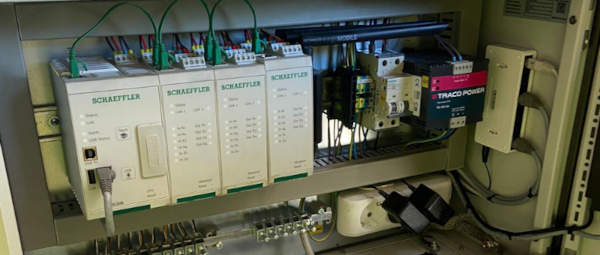
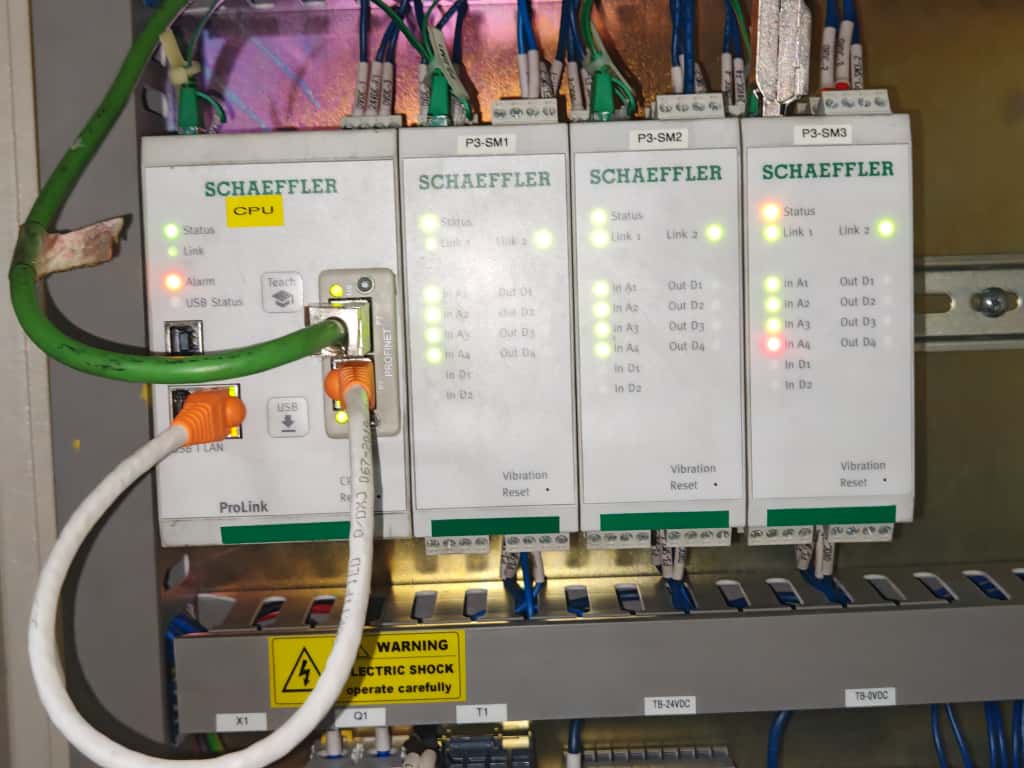
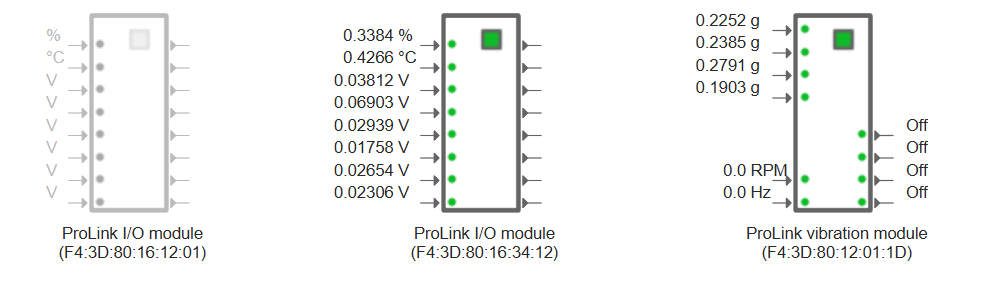
Are the ProLink module's IP-addresses different than the CPU module's IP-address?
The modules are connected via Ethernet, using the network sockets on top of the devices (internal network). This is a
private network, with a different IP address range than the one used for the front socket (external network) of the CPU
module. Do not mix these two networks.
Are trainings available for ProLink?
Yes, Schaeffler offers various training options for ProLink. More information on this can be found
here.
Can ProLink be used in areas where explosive atmospheres might occur (ATEX-zones)?
No.
Can ProLink send emails triggered by certain events?
Yes, ProLink can be configured to send emails when certain events occur. For this, check the
manual.
Can I connect a PROFINET or EtherNet/IP network socket with the front network socket?
This is not recommended, as the front network socket is not designed for real-time communication and may introduce
latency and jitter into the fieldbus network. The front network socket is intended for general Ethernet communication,
such as connecting to a local network or the internet and may not meet the requirements of a PROFINET or EtherNet/IP
network, where real time operation is usually required. The following picture shows an example of a network connection
we don’t recommend:
Can I copy measurement configurations from one ProLink to another?
Yes, you can copy measurement configurations from one product to another. For this, the product has to have the same
hardware configuration, i.e. the same number and type of modules. You can download a configuration from one product via
SmartWeb (File -> Save device configuration) and apply it to the next product (File -> Upload device configuration). The
same can be achieved using the SmartUtility (Light) software, by downloading the configuration (More actions -> Download
configurations) and uploading it to the next device(s) (More actions -> Upload configurations).
Can I install a ProLink module away of the cabinet?
The internal ProLink communication between each module is done with standard ethernet cables. The uplink cable has to be
able to transfer at least 100Mb/s. The maximum cable length is 100 meters. So yes: it is possible to install a ProLink
module away from the cabinet.
Doing so can reduce the cabling cost, since this allows the user to install the ProLink module close to the position of
the sensors, which can be far away from the cabinet.
Can I use a network switch to connect ProLink modules?
The ProLink modules are connected via Ethernet, using the internal network switch in each module. However, there might
be situations where you want to use an external network switch to connect multiple modules together, e.g. when the
modules are far apart. This switch must support the precision time protocol (PTP, IEEE 1588v2).
Can I use the network cable to power the ProLink?
No, ProLink does not support Power over Ethernet (PoE) according to the IEEE 802.3af Mode A standard. The use of a
separate power supply is required to power the device, and the Ethernet cable is only used for data transmission.
Do I have to connect the modules in a specific order in the ProLink cabinet?
The modules of ProLink can be connected in any position and in any order. The order in the cabinet might not match the
order of the modules in SmartWeb, but this does not affect the functionality. In SmartWeb, the modules are ordered
alphabetically by their names, which are by default the serial numbers / MAC addresses of the modules. You can change the name
of the modules in SmartWeb.
Do I have to purchase software to work with ProLink?
SmartWeb and SmartUtility Light are included in the
scope of supply. SmartUtility is a separate purchase. This is
needed for data analysis. A 60-days test version is available free of charge.
How can I find out which of my modules in the cabinet is which module in SmartWeb?
When you have multiple modules installed in your ProLink cabinet it can be difficult to identify which physical module
corresponds to which module in the SmartWeb interface. You can look at the serial number of each module (printed on the
label on the side), but this can be difficult or impossible when the modules are installed in a cabinet or rack.
To help with this, each module has an “identify” function that you can use to make the module’s I/O LEDs blink, making
it easy to locate. To do this, click on the green square of the module you want to identify in the SmartWeb interface
(on the status screen or the input or output configuration screen). This will start the “identify”-mode.
How can I integrate data from ProLink into my software or infrastructure?
If you want to read data from ProLink to integrate them into your software or infrastructure, you have several options:
Receive data via email
Receive data via MQTT
Receive data via OPC/UA
For all three, we provide data of ProLink in a structured format, which you can easily parse and use in your software.
The data contains information about the device, its measurements, and its status. The data is provided in protobuf
format (not json!). We provide open-source tools to decode this data, which you can find on our
GitHub repository for the data converter tool.
More information on the data exchange with ProLink can be found in the document
Data exchange with ProLink.
How can I replace a (defective) ProLink module?
When a module has to be replaced, for example because it is defective, the following procedure has to be followed to
ensure that the measurement jobs will continue to work as before the replacement, i.e. the assigned inputs and outputs
in the measurement job are not changed.
Beware: you cannot exchange a module without losing the measurement data on the device.
Download configuration and measurement data via SmartWeb or SmartUtility to have a backup of the current
configuration
Power off the ProLink device
Disconnect all cables connected to the module to be replaced, build in the new module and reconnect all cables
Power on the ProLink device
Wait for the SmartWeb to be loaded and both the old (greyed out) and the new module (normal) are displayed on the
status page
Reload the SmartWeb page, since the automatic refresh might not have detected the new module
Delete the greyed-out module (Configuration -> Input configurations -> Select the greyed out module -> Delete)
Replay the previously downloaded configuration via SmartWeb or SmartUtility
Replace 2 modules at once:
In this case the software has to decide, which new module will replace which old module. In this case the new module
with the lower serial number will replace the module with the alphabetically lower module name (or serial number if
the name was not changed)
How can I stay informed about new releases for ProLink?
You can get automatic notifications whenever new versions of ProLink are released. This way, you’ll always know when
new updates, manuals, or important information becomes available.
Look for the green feed symbol (it looks like a radio wave icon) next to “Latest news” and click on it
You will see a page with text that looks like code - don’t worry, this is normal
Copy the web address from your browser’s address bar. It should be: https://sls-cdn.schaeffler-iot.com/feed.xml
Getting the notifications:
Now you need a program that can read these notifications (called a “feed reader”). Some options:
Outlook (older versions only, not “Outlook new”): Open Outlook,right-click the RSS Feeds folder and choose “Add a
new RSS feed”, then paste the web address you copied. Note: Newer versions of Outlook do not support RSS feeds, so this
option is not available Outlook new.
Email programs with feed support: Look for an option to “Add RSS Feed” or “Subscribe to Feed” and paste the web
address
Browser extensions: Some web browsers have add-ons that can show you these updates
Feed reader apps: You can download free apps like Feedly or Inoreader, then add the web address there
Once set up, you’ll automatically receive notifications whenever something new is published.
How do I communicate with ProLink for configuration and data handling?
For the configuration of the ProLink, an internet browser is needed, which connects to the device’s SmartWeb via
Ethernet. For the data handling, also SmartUtility can be
used.
How do I contact support when I think I found a bug in the software?
When you have a problem with the ProLink device and think that this might be a bug in the software, then we highly
appreciate you to report this to us, so we can investigate and improve the ProLink firmware. On the top of this page,
you find the link to our technical support.
When you contact us, it really helps us when you provide the following information, depending on the use case:
Type and serial number of the device, i.e. mac address, printed on the label of the device
Hardware configuration
Connections to the outside world, e.g. is there a network connection, which protocols are used, which external signals
are connected to the device, etc
Version number of the components involved, e.g. firmware version number of the ProLink firmware, software version of
SmartUtility, if it is involved, etc. In the firmware, the version numbers are all listed in SmartWeb in the menu under
Help –> Version information. This table can be copied as text and then pasted into an email or support form
When the support requests more information, it is helpful to provide for example log files of the ProLink device, which
can be analysed by the support team and the developers to investigate the problem. There are 2 ways of downloading them:
While in SmartWeb, change the URL in the browser to <IP address>/debug_info.scr and press <enter>.
Open the maintenance system of the ProLink device, e.g. restarting the device and reloading the browser several times
until the maintenance system is shown. Then enter the maintenance system by clicking on the icon and then click on the
icon “Download debug log files”, then click on the symbol.
Both will download an encrypted package of all log files in the system, which can only be unpacked by Schaeffler support
and R&D to investigate the issue. Some virus scanners will not allow this file type to be sent. In this case, either use
a shared drive like OneDrive or Google Drive to send the file, or just rename the extension from .scr to .txt. Since the
file is an encrypted .tar.gz file, and only contains log files in text form, this poses no security risk to anyone.
How do I figure out the IP address of my ProLink?
The device can get its IP address in one of three ways:
Automatically from a DHCP server on your network.
If set to DHCP, but no DHCP server is found, it will assign itself the default address of 192.168.1.100.
Manually assigned by you.
If you do not know the IP address of your device, you can try the following methods to find it:
Use the SmartUtility (Light) software, which can scan your network and find the device. This uses a UDP broadcast to
locate the device. On modern company-managed computers, this might not be allowed due to firewall settings. Then
SmartUtility will not find any device. But even if the firewall allows the broadcast, it might not find the device if
in a different network section. Network switches might block broadcasts between different sections. (see the
IT security information document for more information on needed
ports in the firewall).
Check your DHCP server’s client list to see if the device has been assigned an IP address.
Try the default IP address of 192.168.1.100.
If these measures do not work, it will become much more difficult to find the device. You might need to log the network
traffic in the hope that the device is configured to access external network resources. In this case it makes sense to
use a network sniffer tool like Wireshark to log all network traffic and then filter for the MAC address of the device.
The MAC address is printed on a label on the device. Or if you know that devices in your network are usually configured
to a certain IP range, you can write a script to ping all addresses in that range and see which ones respond.
Another tip is to use a PC or laptop which is not managed by the company IT. Such a PC is more likely to have less
restrictive firewall settings and might be able to find the ProLink using the SmartUtility (Light) software. You can
connect this PC directly to the same network as the ProLink and run the SmartUtility (Light) to see if it can find
the device’s IP address. Now you can change the IP address of the device to something more suitable for your network, or
to DHCP, and then connect it to your company-managed computer.
How do I figure out the MAC address of my ProLink?
There are three ways to find the MAC address:
You’ll find a label on the device itself
With Smartweb (Help -> Version information -> Serial number)
In SmartUtility, when you search for devices
The MAC address is equal to the serial number of the device.
How do I interpret the status words used in external channels?
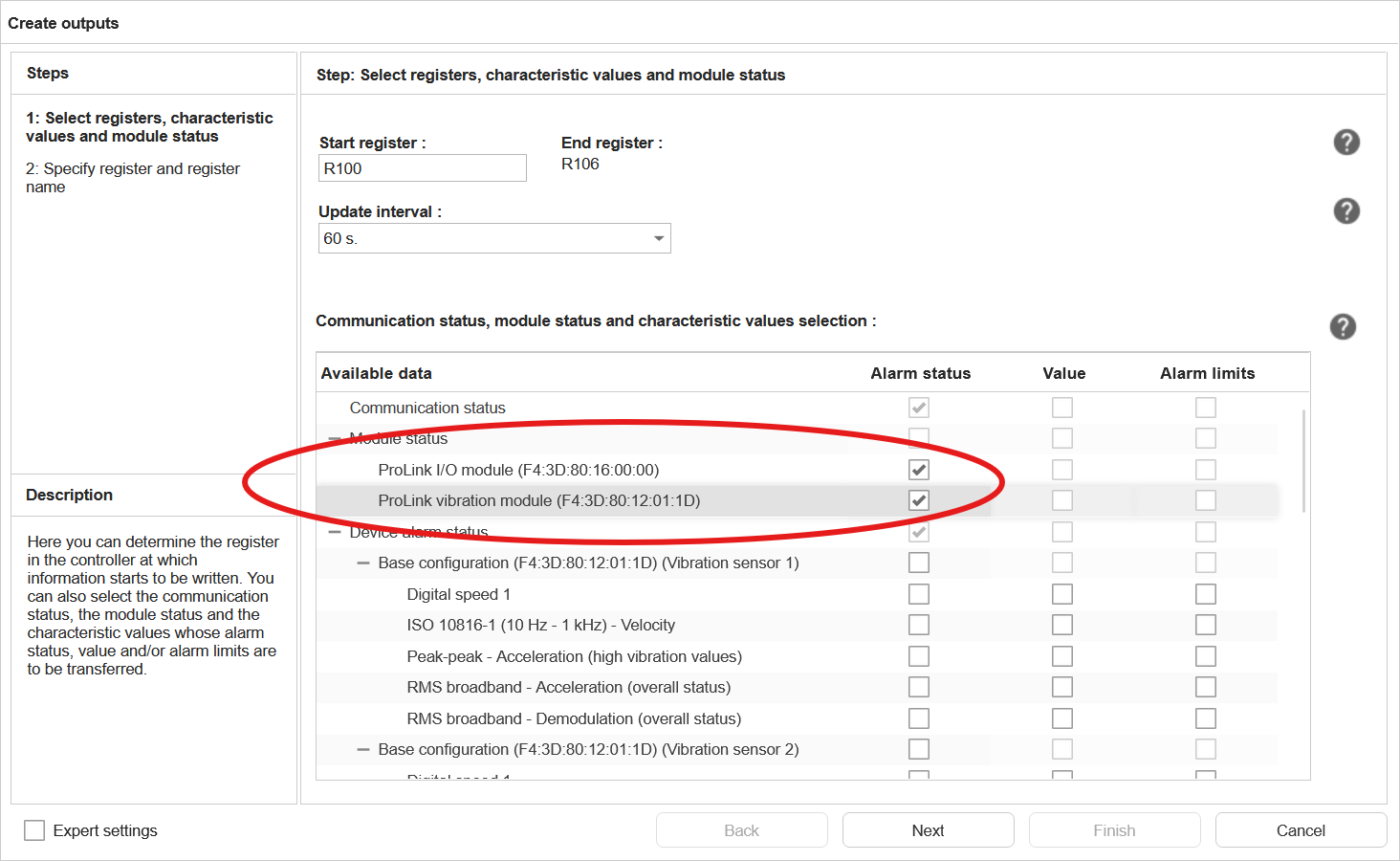
As user, you can add the (alarm) status of measurement jobs and characteristic values to the output of an external
fieldbus channel (SLMP, EtherNet/IP, PROFINET). As of firmware version 3.4.0, it is also possible to add the status of
the modules (including sensor state) as an output to the external channels of the device.
Measurement job and characteristic value status word:
The status words for the measurement jobs and characteristic values are 16-bit values, with the following values:
Alarm state value
Meaning
0
undefined
1
no alarm
2
pre alarm
3
main alarm
4
error
Module’s status
The module status words are 32-bit values, where some of the bits represent a specific status or condition.
Vibration module status word:
Bit position
31 (MSB)
30-10
9
8
7
6
5
4
3
2
1
0 (LSB)
Meaning
MS
-
DO4
DO3
DO2
DO1
DI2
DI1
AI4
AI3
AI2
AI1
Abbreviation
Meaning
Values
MS
Module Status
0: OK; 1: error
DO1-4
Digital Output 1-4
0: OK; 1: error (e.g short circuit of the output)
DI1-2
Digital Input 1-2
0: OK; 1: error
AI1-4
Analog Input 1-4
0: OK; 1: error (e.g. IEPE sensor error)
I/O module status word:
Bit position
31 (MSB)
30-8
7
6
5
4
3
2
1
0 (LSB)
Meaning
MS
-
IO8
IO7
IO6
IO5
IO4
IO3
IO2
IO1
Abbreviation
Meaning
Values
MS
Module Status
0: OK; 1: error
IO1-8
Input/output channel 1-8
0: OK; 1: error (e.g. undercurrent in a 4-20mA loop)
How do I use TLS (SSL) certificates with ProLink?
ProLink offers several features that require secure, encrypted communication. The following protocols and features in
ProLink use certificates:
OPTIME: ProLink uses TLS for secure communication with the OPTIME cloud platform. This certificate is automatically
installed during onboarding to OPTIME.
MQTT: ProLink can use TLS for secure MQTT communication with an MQTT broker.
HTTPS: ProLink’s SmartWeb interface and the status webservice use HTTPS for secure communication.
OPC/UA: ProLink can use TLS for secure OPC UA communication with an OPC UA client.
MQTT
MQTT uses its own certificates for secure communication. To use your own certificates for MQTT, you will need to import
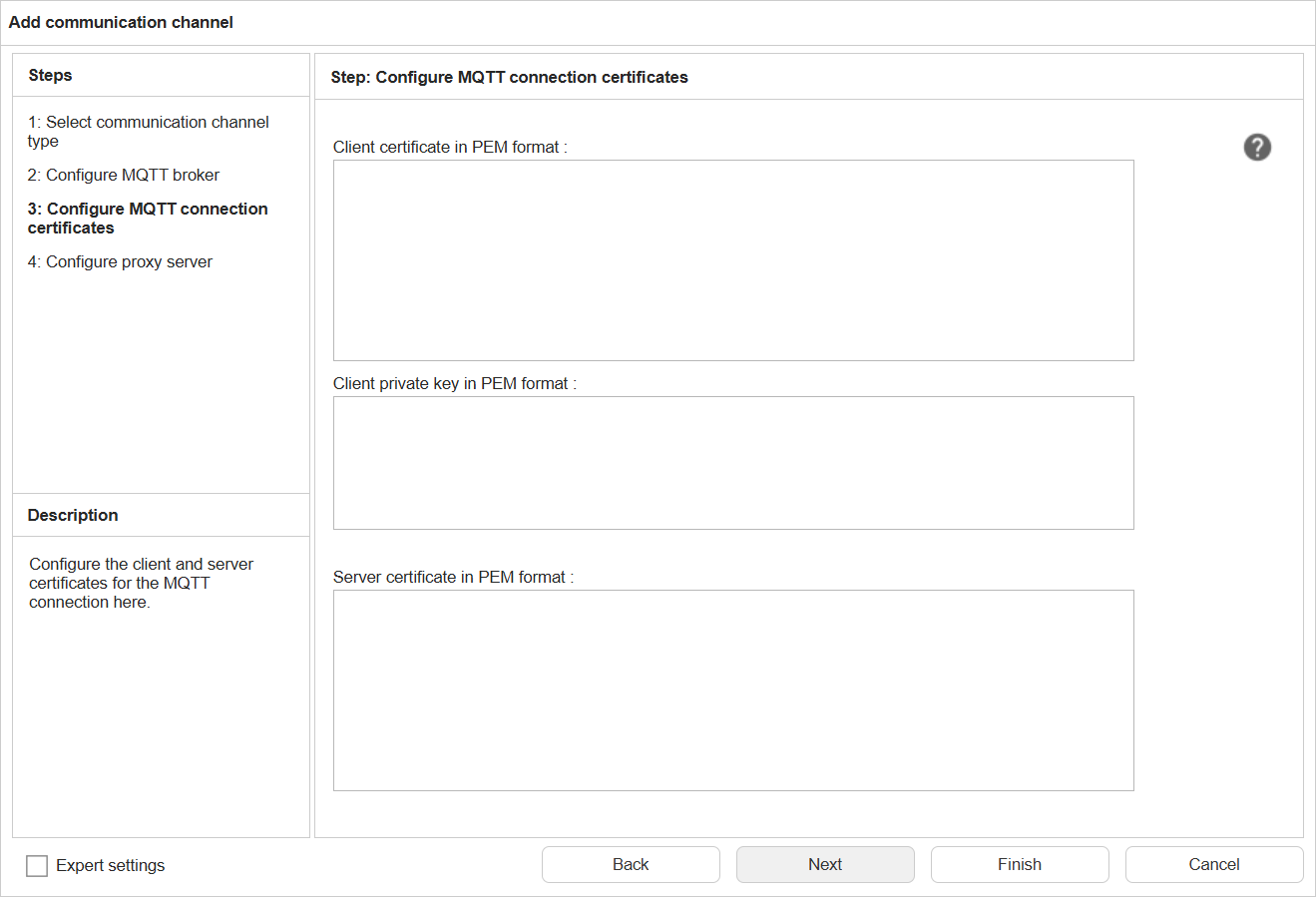
them into the device. For each MQTT-connection, you can add your own set of certificates. In SmartWeb, select the
configuration screen, select Communication Channels -> Add -> MQTT and enter the data on the first configuration screen.
Then click next to the following configuration screen:
Here you can upload the following:
Field
Description
Client certificate
The client certificate used for MQTT communication. This certificate is used to authenticate the device to the MQTT broker.
Client private key
The private key corresponding to the client certificate. This key is used for authentication and encryption in MQTT communication.
Server certificate
The server certificate used to verify the MQTT broker’s identity by ProLink. This certificate is used to ensure that the device is communicating with a trusted MQTT broker.
HTTPS and OPC UA
HTTPS and OPC/UA share the same SSL certificate for secure communication. By default, a self-signed certificate is
installed in the factory to be used by HTTPS and OPC UA communication. However, you can also use your own TLS
certificate, such as one issued by a trusted certificate authority (CA), to enhance security and ensure that your
communication is trusted by clients.
To use your own certificate, you will need to import it into the device. For this, reboot into the maintenance system
(in SmartWeb, click on Help -> Select device restart -> Start the device’s Maintenance System). Then enter the
maintenance system, click on “Adjust system settings” and then on “Replace server certificate (PEM)”. Details on this
can be found in the user manual
When using this certificate also for OPC UA, on creation of the certificate, you need to set the following “alternative
subject”: “URI:urn:schaeffler:cms”
IMPORTANT: ProLink currently only supports RSA certificates. DSA or elliptic curve are not supported.
In the uploaded file, both the certificate and the private key must be included in PEM format. Both can be copied in the
same file, with the private key first, followed by the certificate. An example of the file content is shown below:
How much data can I store before the memory of the ProLink is full?
For as long as there is free memory available, all measurement data is stored in the internal flash memory of the
ProLink device. When there is only 5MB of free memory left, the system starts to delete the oldest measurement data to
free up space for new data. But is does this in an intelligent manner, by removing single measurement points from
historical data, for example by removing hourly measurements and keep only one measurement per day. The longer back in
history, the fewer data points are kept. This way, the system can store data for a very long time, even with limited
memory.
Is it possible to download data or configurations from ProLink using SmartUtility Light?
SmartUtility Light can download data and
configurations, as well as upload configurations.
My ProLink has the wrong time. How can I fix this?
The ProLink device has an internal clock, which can drift over time, since its accuracy is depending on many factors
like the temperature for example. Additionally, the system time can be off after a power-down of the system. To always
have the correct time on the device, it can use a time-server using the network time protocol (NTP). See the
manual on how to configure this. Ask your IT department for the address of this
server.
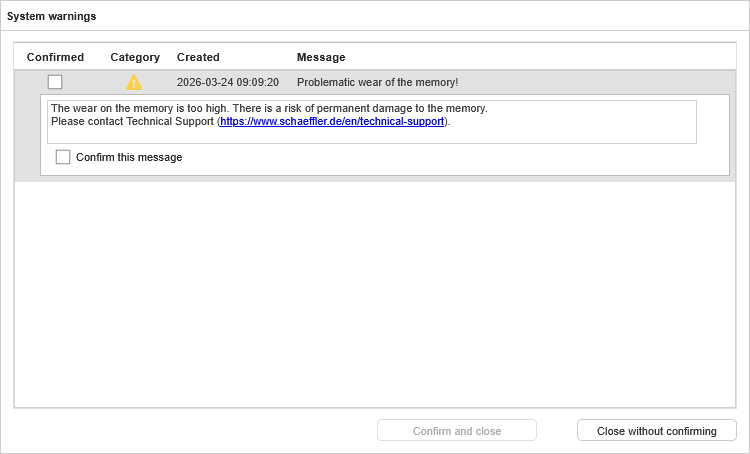
SmartWeb showed me a warning about flash wear. What does that mean?
As with any device using flash memory, there is a limit to the number of times a flash cell can be written. When this
limit is reached, the cell will no longer work and cannot be used anymore. This comes from the physics of how flash
memories work, the flash hard disk in your laptop and flash memory in your mobile phone have exactly the same issue. We
have mechanisms in place, to prolong this time as much as possible. For example, does the device have more flash
internally as is shown to the outside, which makes it easier to distribute where in the flash data is written, ensuring
that the millions of flash cells we have wear roughly the same (wear leveling).
But in the long run, the flash in the system will be worn down. We designed the hardware and firmware in a way, that for
normal usage (e.g. having some measurement jobs per vibration channel, storing KPI and time signal data a few times per
day), the device’s flash will be usable for an estimated 10-20 years. What this warning says, is that your configuration
writes more data to the flash than we calculated to reach this life span. Depending on the use case, this might be OK or
not. For example, when you are doing a new setup on a machine, and you are trying out different settings, it is
perfectly OK to use such settings for a few days or weeks and then change them to store less data. In another use case,
it might be so important to measure as much data as possible in a short time, that the risk not to survive for decades
is acceptable.
And even when the flash is worn down, this is not the end of the ProLink. We have a process in place to replace the
flash components, so a ProLink with a worn-down flash can be revitalized, without the need to replace the entire (CPU)
unit. In this case, contact our technical support via the link on the top of this page.
What happens if the power supply of the ProLink is interrupted?
ProLink stores all configurations directly in non-volatile memory. Measured data is cached for up to 5 minutes before
it is written to non-volatile memory, so the worst case is that measurement data of the last 5 minutes may be lost in
case of a power loss. The internal real time clock (RTC) of the ProLink device is buffered by a capacitor for a duration
of approximately 2 weeks if the ProLink device is not powered by a power supply. When the power is lost for more than 2
weeks, the internal RTC will reset to the last time of any event stored in the non-volatile memory, e.g. the last time a
measurement was stored. This may lead to incorrect timestamps for measurements after the power loss, until the RTC is
synchronized again, e.g. via NTP or by setting the device manually to the correct time.
The measurements will continue as soon as the power supply is restored, and the ProLink will automatically reconnect to
the network and to the configured data exchange targets.
What happens to my network settings if I use "Restore factory default settings" on ProLink?
If you use “Restore factory default settings”, no changes will be made to your own network settings. This is to prevent
losing the network connection to the device.
Why is it important to update the firmware of my ProLink and how do I get updates?
The firmware of the ProLink device is improved over time. Certainly it is a valid strategy not to update the firmware
of the ProLink device in the field. Never change a running system, right? However, updating has several benefits:
New features can greatly improve the benefit of the device, for example with new analysis methods or more
configuration possibilities.
As with any complex software, also the firmware of the ProLink device contains bugs which slipped the quality
assurance measures before the release of a new version. In new firmware versions, bugs which are found internally or
reported by customers are fixed.
The firmware can have IT security issues, which will be fixed after they are reported, for example in the open-source
components used in the firmware. More information on this can be found in the
on IT security information
document on this page.
Updates are always published on this page. For each new firmware version, we also provide the release notes, which
explain in detail which changes were made to the firmware.
If you are using the SmartUtility software software or
SmartUtility Light software software on your PC, you will be informed automatically
whenever a new firmware version for your devices is available.